How to Reduce PDF File Size for Email
Email bouncing because your PDF is too big? Here's a calm, step-by-step way to get under the limit — compress, split, or share a link — without losing readability.
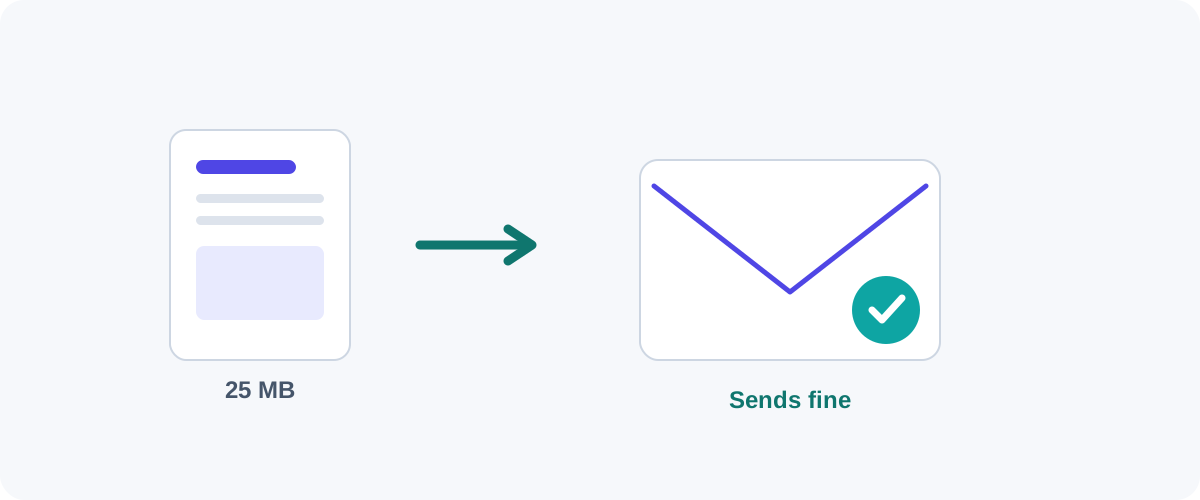
“Your message couldn’t be delivered because the attachment is too large.” It’s a small, deflating moment. The fix is straightforward once you know the order to try things in — and you rarely need to sacrifice quality. Here’s the exact sequence I run through.
First, know the limits
| Provider | Attachment limit |
|---|---|
| Gmail | ~25 MB |
| Outlook.com | ~20 MB |
| Yahoo Mail | ~25 MB |
| Many work/corporate servers | 10 MB (often stricter) |
Because the recipient’s server also gets a say, a good universal target is under 10 MB. Hit that and it’ll send almost anywhere.
Step 1: Check what’s making it big
Open the PDF and skim it. Is it mostly text (an exported document) or mostly images/scans? Text PDFs are usually already small — if one is huge, it’s hiding images. Image-heavy PDFs are where you’ll get the big wins. This tells you how much room there is to shrink.
Step 2: Compress it
This solves the majority of cases. Compression re-encodes the images at a lower (but still screen-sharp) resolution:
- Mac: Preview → File → Export → Quartz Filter → Reduce File Size (or a custom 150 DPI filter for gentler results).
- Any platform: Ghostscript with
-dPDFSETTINGS=/ebookfor the email sweet spot. - Online / in-browser: a compress tool when you’re not at your own machine.
Our full walkthrough of settings is in how to compress a PDF without losing quality. For emailing, the /ebook (≈150 DPI) level is almost always the right call.
Aim for 150 DPI
For documents that will be read on a screen, 150 DPI looks crisp and is far smaller than the 300–600 DPI a scanner produces by default. That one change usually does the whole job.
Step 3: Split it (if it’s genuinely long)
If the file is large because it has many pages — not because of heavy images — splitting can be the cleaner answer. Send chapters or sections as separate, smaller emails. See how to split a PDF or extract pages. This is handy when the recipient only needs part of the document anyway.
Step 4: Share a link instead
When a file simply has to stay large — a high-resolution portfolio, a print-ready document — stop fighting the attachment limit and share it from the cloud:
- Upload to Google Drive, Dropbox, or OneDrive.
- Create a share link.
- Paste the link into your email.
The recipient downloads the original file through the link. Check the sharing permissions and expiry date before sending it.
Don't bother zipping a single PDF
PDFs are already internally compressed, so a ZIP shaves off almost nothing. Zipping only makes sense to bundle several files into one download.
The quick playbook
- Compress to ~150 DPI — fixes most files.
- Still big and very long? Split it.
- Must stay large? Share a cloud link.
Run them in that order and “too big to email” stops being a problem. Nine times out of ten, step one is all you need.
Frequently asked questions
What's the maximum PDF size I can email?
It depends on the provider. Gmail and Outlook.com allow about 25 MB and 20 MB per message respectively, but the recipient's server may reject anything large too. As a practical target, get under 10 MB so it sends and downloads reliably everywhere.
Will zipping the PDF make it smaller?
Barely. PDFs are already compressed internally, so putting one in a ZIP usually saves only a percent or two. Zipping is useful for bundling several files together, not for shrinking a single PDF.
My PDF is mostly scanned pages. Why is it so big, and what helps?
Scans are images, and images are what make PDFs large. Compressing to around 150 DPI typically cuts a scanned document dramatically while staying perfectly readable on screen. That single step solves most "too big to email" cases.
What if I still can't get it small enough?
Don't force it. Upload the PDF to cloud storage (Google Drive, Dropbox, OneDrive) and email a link instead. The recipient gets the full-quality file and your message sends instantly.
Related guides
 PDF
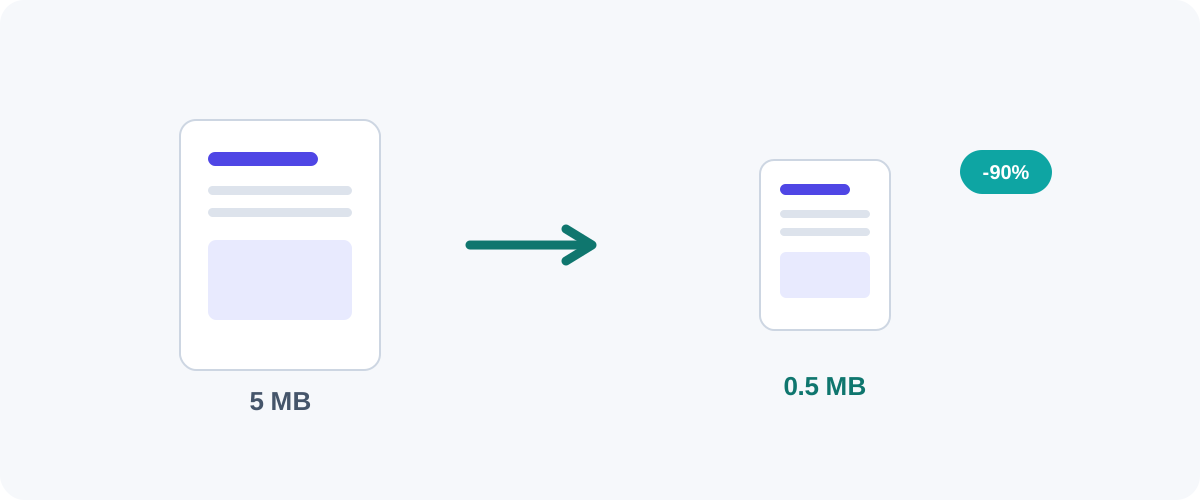
PDF How to Compress a PDF Without Losing Quality
Why PDFs get huge, what compression actually changes, and the best free ways to shrink a PDF on Mac, Windows, and online — without turning your text to mush.
 PDF
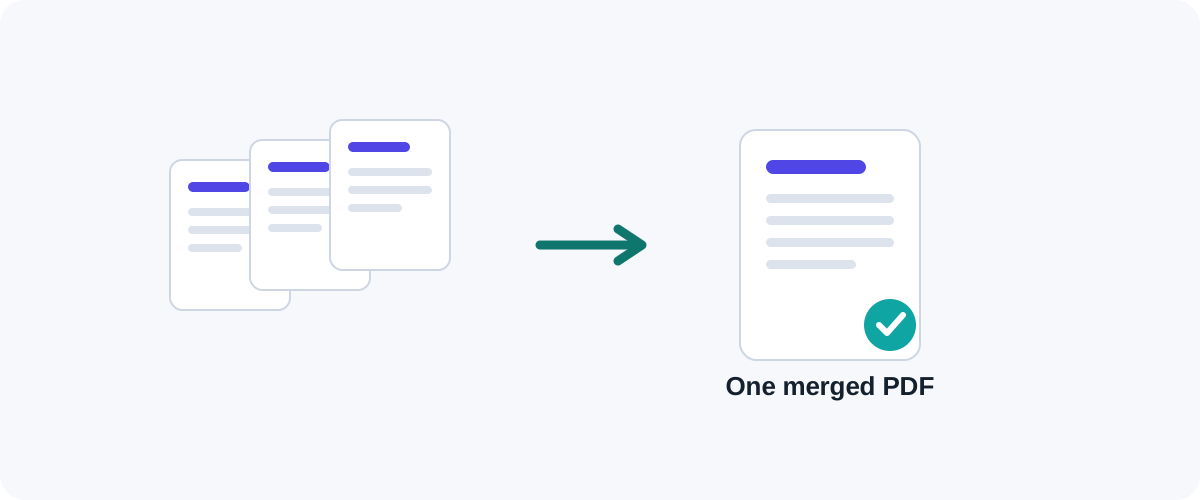
PDF How to Merge PDF Files for Free (Windows, Mac, iPhone & Android)
A practical, tested guide to combining multiple PDFs into one file — online, on your desktop, on your phone, and from the command line — with the right method for every device.
 PDF
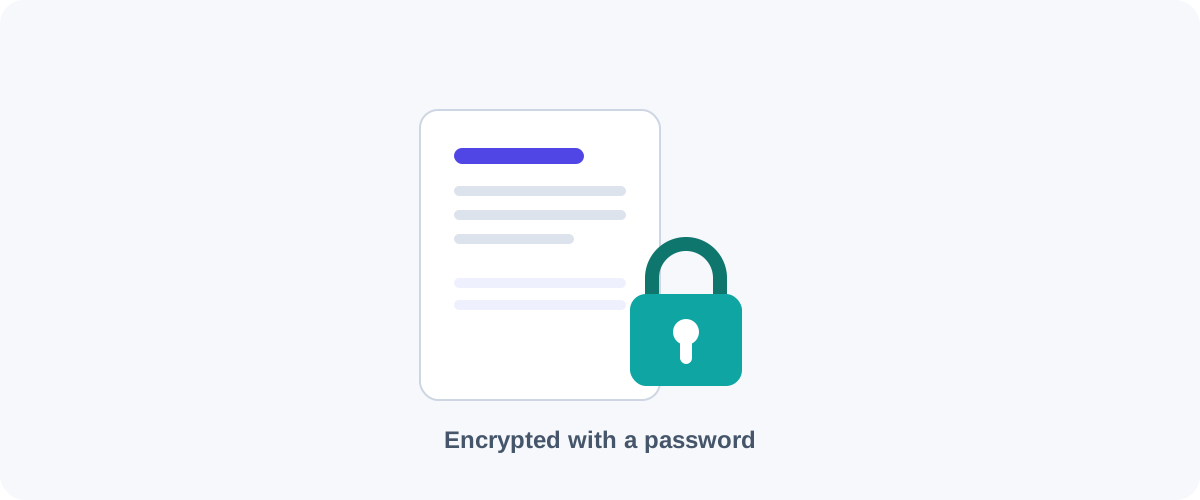
PDF How to Password-Protect a PDF (and Remove a Password You Know)
Add a password and encryption to a PDF for free on Mac, Windows, and the command line — plus how to remove a password from a PDF you own when you no longer need it.