How to Password-Protect a PDF (and Remove a Password You Know)
Add a password and encryption to a PDF for free on Mac, Windows, and the command line — plus how to remove a password from a PDF you own when you no longer need it.
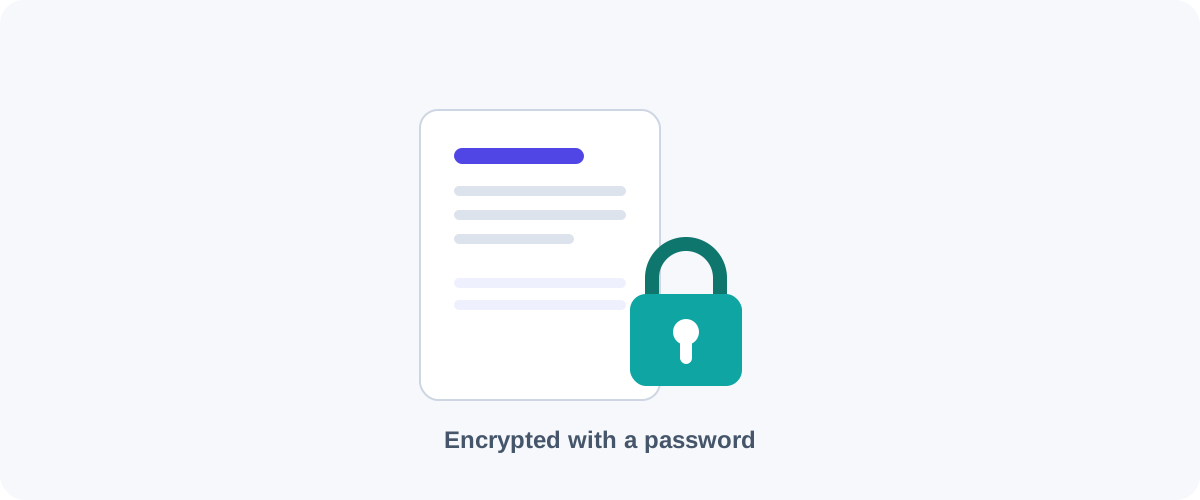
If you’re emailing a contract, a payslip, or anything with personal details, a password on the PDF is a sensible, free layer of protection. Below are the methods I trust for adding a password — and, at the end, how to remove one from a file you own when it’s no longer needed.
One rule up front
This guide is about protecting documents you own. We don’t cover cracking, bypassing, or removing protection that someone else applied — that’s both outside our scope and, in many cases, against the law.
Method 1: On a Mac (Preview, built-in)
macOS can encrypt a PDF with no extra software:
- Open the PDF in Preview.
- Choose File → Export.
- Tick Encrypt.
- Enter and confirm a password, then save.
Anyone opening the new file will be prompted for that password. It’s quick, offline, and uses strong encryption.
Method 2: On Windows (Microsoft Word)
If your PDF started life as a Word document, Word can protect it on the way out:
- With the document open, choose File → Save As and pick PDF.
- Click Options…
- Tick Encrypt the document with a password, set the password, and save.
For an existing PDF you didn’t create in Word, use the free LibreOffice (File → Export as PDF → Security tab → set an open password), which is offline and open source.
Method 3: Command line (qpdf)
For precise, scriptable, offline encryption:
# 256-bit AES; "userpw" opens the file, "ownerpw" controls permissions
qpdf --encrypt userpw ownerpw 256 -- input.pdf protected.pdf
Use the same password for both fields if you just want a single open password. This is my pick for batch-protecting many files at once.
Choose the password well
Encryption strength barely matters if the password is weak. Use a long passphrase, store it in a password manager, and share it through a different channel than the file itself — don’t put the password in the same email as the attachment.
Removing a password from a PDF you own
Sometimes you protected a file and now want a clean, unlocked copy — say, to merge it or archive it. As long as you know the password:
- Mac: open it in Preview (enter the password), then File → Export without ticking Encrypt. The exported copy is unprotected.
- Command line:
qpdf --decrypt --password=YOURPASSWORD locked.pdf unlocked.pdf
Again — this only works because you have the password. It is not a way around protection you don’t control.
A safe default workflow
For most people, the simplest secure flow is: protect the PDF with Preview (Mac) or Word/LibreOffice (Windows) using a strong passphrase, email the file, and send the password by text or a separate message. When you no longer need the lock, export an unprotected copy and delete the protected one.
Want to slim the file down before sending it too? Pair this with our guide on compressing a PDF.
Frequently asked questions
What's the difference between a user password and an owner password?
A user (open) password is required to open and read the document at all. An owner (permissions) password lets the file open freely but restricts actions like printing, copying text, or editing. You can set one or both. For real confidentiality, use a user password — permission-only restrictions are easy for software to ignore.
How strong is PDF encryption?
Modern tools use AES-256, which is genuinely strong when paired with a good password. The weak link is almost always the password itself, not the encryption. Use a long, unique passphrase, because if it's guessable the strongest cipher won't save you.
I forgot the password to my own PDF. Can I recover it?
If it was opened with a strong user password and you don't have it, there's no realistic way to recover the contents — that's the point of encryption. We don't cover cracking or bypassing passwords. If it's a file you protected, check your password manager; if someone else protected it, ask them to resend it unlocked.
Can I remove a password from a PDF?
Yes, if you know the password and have the right to do so. Open it with the password and re-save or export an unprotected copy (for example with qpdf's --decrypt option). This is for files you own — not for getting around protection someone else applied.
Related guides
 PDF
PDF How to Compress a PDF Without Losing Quality
Why PDFs get huge, what compression actually changes, and the best free ways to shrink a PDF on Mac, Windows, and online — without turning your text to mush.
 PDF
PDF How to Merge PDF Files for Free (Windows, Mac, iPhone & Android)
A practical, tested guide to combining multiple PDFs into one file — online, on your desktop, on your phone, and from the command line — with the right method for every device.
 PDF
PDF How to Convert a PDF to Word (and Keep the Formatting)
The free ways to turn a PDF into an editable Word document on any device — using Word itself, Google Docs, or LibreOffice — plus why scanned PDFs need a different approach.