How to Convert a PDF to Word (and Keep the Formatting)
The free ways to turn a PDF into an editable Word document on any device — using Word itself, Google Docs, or LibreOffice — plus why scanned PDFs need a different approach.
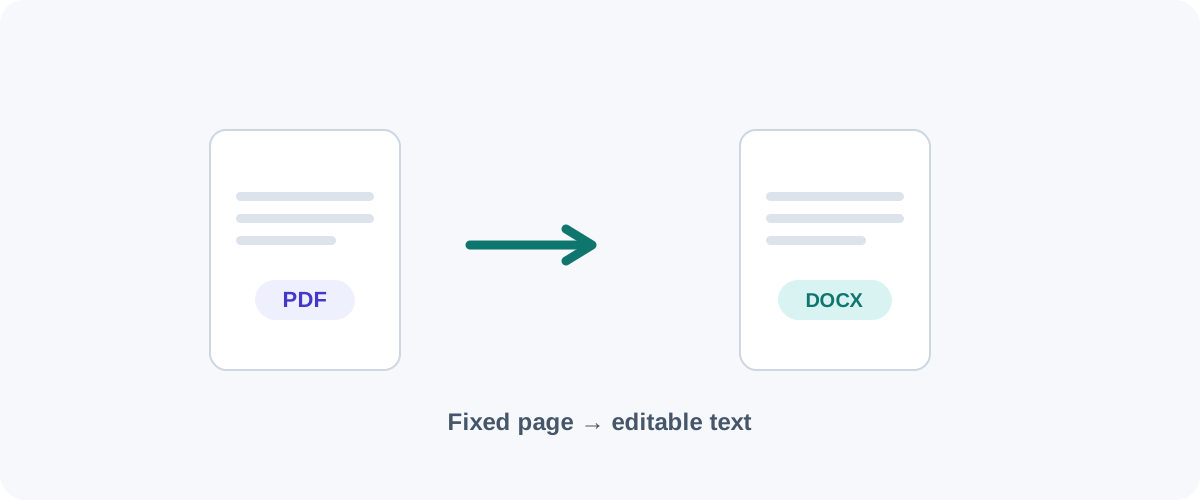
You’ve been sent a PDF and you need to actually edit it — change a few lines, update a date, reuse the text. The good news is you almost certainly already have a free tool that can turn that PDF into an editable Word document. The trick is picking the right one for the kind of PDF you have.
First, what kind of PDF is it?
Try to select a sentence with your cursor. If you can highlight the text, it’s a “real” text PDF and any method below will work well. If the text won’t highlight — it’s just an image — you have a scanned PDF and you’ll need OCR (covered at the end).
Method 1: Microsoft Word (the cleanest result)
If you have Word, this is usually the best conversion you’ll get for free:
- Open Word.
- File → Open, and select the PDF.
- Word shows a prompt explaining it will convert the PDF into an editable document. Click OK.
- Edit, then Save As a
.docx.
Word generally works well on body text, headings, and simple tables. Scanned PDFs may need a separate OCR step before their text can be edited.
Method 2: Google Docs (free, nothing to install)
No Word? Google Docs converts PDFs for free and works in any browser:
- Upload the PDF to Google Drive.
- Right-click it → Open with → Google Docs.
- Docs recreates the text in an editable document. Then File → Download → Microsoft Word (.docx) if you need a Word file.
Google Docs also runs OCR automatically on scans. It tends to keep the words and lose some of the fancier layout — fine when you mainly need the text back.
Method 3: LibreOffice (free, offline, open source)
For an entirely offline option, the free LibreOffice suite opens PDFs in its Draw module, where you can edit text boxes directly and then export. It’s less seamless than Word for long documents, but it runs entirely on your own machine and costs nothing — a solid choice when you’d rather not install much or need to work without internet.
Method 4: Online converters (any device)
Plenty of websites convert PDF to Word in a couple of clicks, which is handy on a phone or a borrowed computer. They work, though they vary in how they process your file.
Check how the converter handles your file
Online converters differ in where they process documents — some run in the browser, others send files to a server. Whichever you use, its privacy policy describes how any data associated with the tool is handled, so it’s worth a look (along with checking for HTTPS) before converting an important document.
Converting a scanned PDF (OCR)
A scan is a photo of a page, so there are no “words” to copy until software recognizes them. That process is OCR. Your options:
- Microsoft Word and Google Docs both attempt OCR automatically when you open a scanned PDF — easiest if you already use them.
- OCR-specific tools (including the open-source
ocrmypdf) produce more reliable results on dense or low-quality scans.
Always proofread OCR output. Even good engines mis-read the odd character, especially with unusual fonts, faint scans, or numbers.
What to expect
| PDF type | Best free tool | Result |
|---|---|---|
| Simple text document | Microsoft Word | Near-perfect |
| Text with basic tables | Word or Google Docs | Very good, minor cleanup |
| Heavily designed / multi-column | Any — then tidy by hand | Expect manual formatting edits |
| Scanned document | Word / Google Docs (OCR) | Depends on scan quality |
Convert with the right tool for your document type, check how that tool handles your files, and budget a couple of minutes to tidy the formatting on complex pages. Do that and “turn this PDF into something I can edit” becomes a quick job rather than a retyping session. If you only need to pull out a few pages first, see our guide on splitting a PDF.
Frequently asked questions
Will the formatting survive the conversion?
Simple, text-based PDFs convert very cleanly. Complex layouts — multi-column designs, lots of images, fancy tables — can lose formatting and need manual cleanup. There's no converter that's perfect on heavily designed pages, so expect to tidy spacing and the occasional misplaced image.
Can I convert a scanned PDF to Word?
Only with OCR (optical character recognition). A scanned PDF is really a picture of text, so a plain converter will just embed the image. You need a tool that runs OCR first to recognize the words — Microsoft Word and Google Docs both do this automatically when you open a scan, with varying accuracy.
Do I need to pay for this?
No. Microsoft Word, Google Docs, and the free LibreOffice can all open or convert PDFs into editable documents at no cost. Paid tools like Adobe Acrobat mainly add convenience and better handling of complex layouts.
Is it safe to use an online PDF-to-Word converter?
It depends on the tool. Desktop apps like Word and LibreOffice do the conversion on your own machine, while online converters vary in where they process files. With any online tool, check its privacy policy for how data associated with the tool is handled before sending a confidential document.
Related guides
 PDF
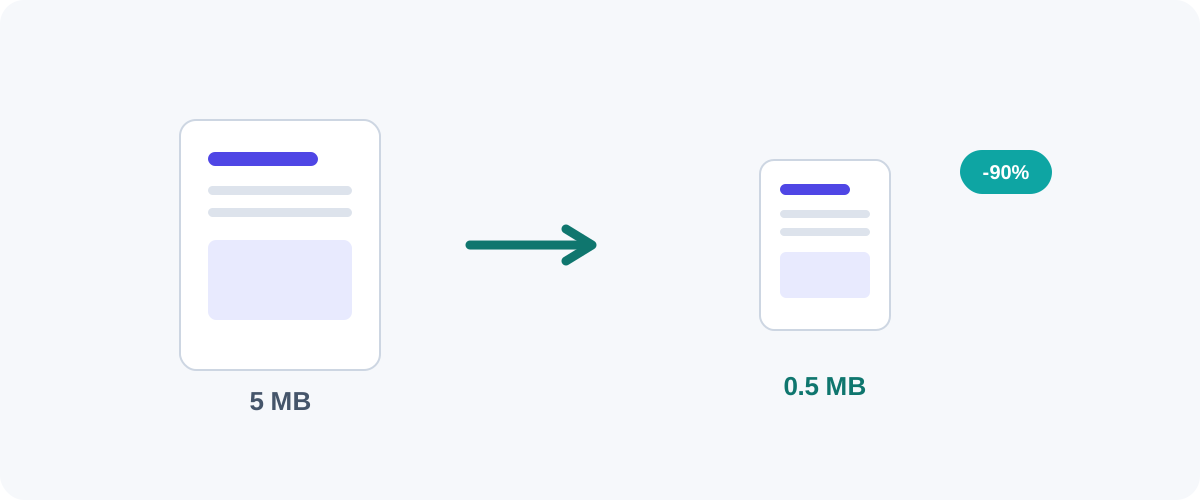
PDF How to Compress a PDF Without Losing Quality
Why PDFs get huge, what compression actually changes, and the best free ways to shrink a PDF on Mac, Windows, and online — without turning your text to mush.
 PDF
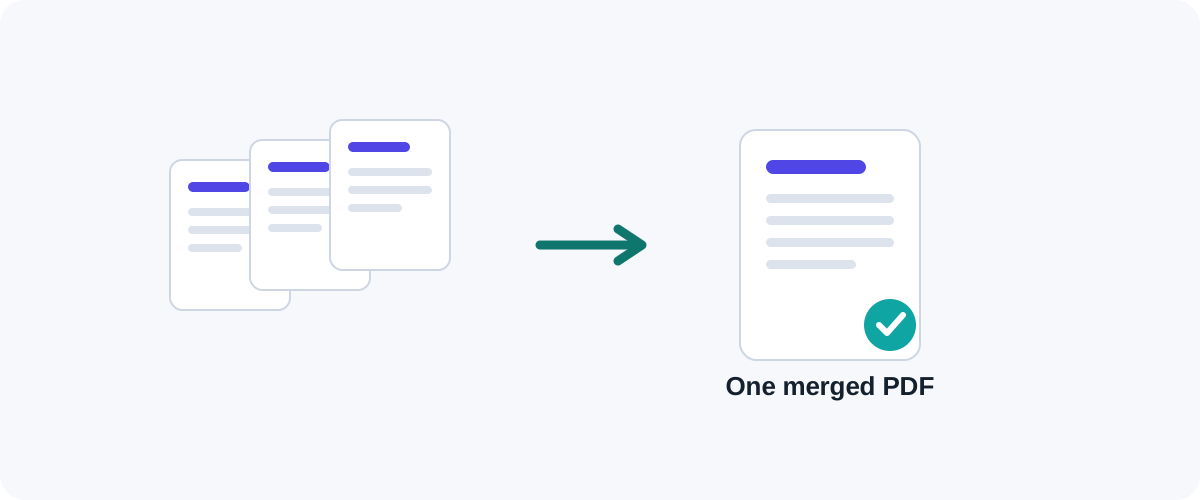
PDF How to Merge PDF Files for Free (Windows, Mac, iPhone & Android)
A practical, tested guide to combining multiple PDFs into one file — online, on your desktop, on your phone, and from the command line — with the right method for every device.
 PDF
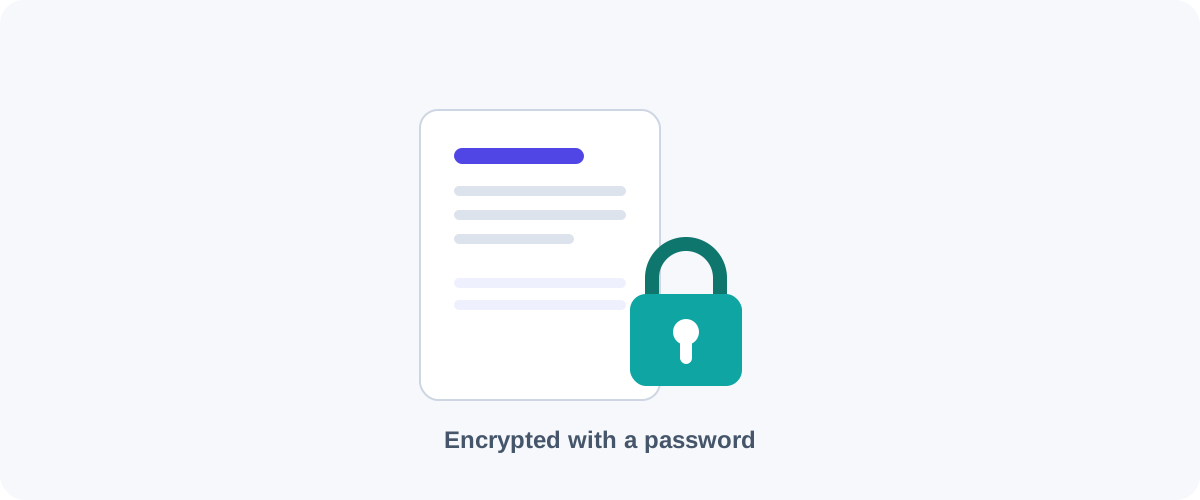
PDF How to Password-Protect a PDF (and Remove a Password You Know)
Add a password and encryption to a PDF for free on Mac, Windows, and the command line — plus how to remove a password from a PDF you own when you no longer need it.