How to Count Words and Characters (and Why the Number Varies)
Where word and character limits matter, how to count in Word, Google Docs, and your browser, and why two tools can give you slightly different numbers for the same text.
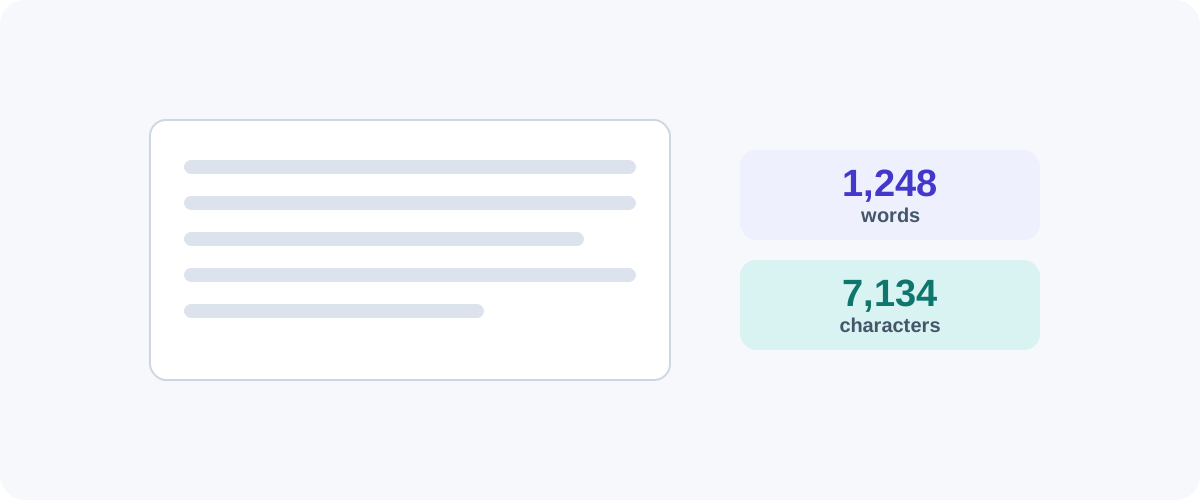
Word and character counts quietly govern a lot of writing — essay limits, meta descriptions, tweet length, SMS billing, form fields. Most of the time you just want a quick, reliable number. Here’s how to get one anywhere, plus an explanation of why counts sometimes disagree (so you don’t panic when they do).
Where these limits actually bite
| Context | Typical limit | Counts |
|---|---|---|
| Tweet / X post | 280 characters | With spaces |
| SMS (single message) | 160 characters | With spaces |
| SEO meta description | ~155–160 characters | With spaces |
| SEO title tag | ~60 characters | With spaces |
| Academic essay | Set word count | Usually words, rules vary |
Knowing whether a limit is in words or characters, and whether spaces count, saves a lot of last-minute trimming.
Count in Microsoft Word
- The status bar at the bottom shows a live word count as you type.
- Click it, or go to Review → Word Count, for the full breakdown: words, characters with spaces, characters without spaces, paragraphs.
- Select any text first to count just that selection — handy for checking a single paragraph against a limit.
Count in Google Docs
- Tools → Word count (or press Ctrl/Cmd + Shift + C).
- Tick “Display word count while typing” to keep a live counter on screen.
- Like Word, selecting text first counts only the selection.
Count in your browser
For a quick check of text you’ve pasted from anywhere, a browser-based counter is fastest — paste, read the numbers, done. The best ones run entirely on your device and show words, characters (with and without spaces), sentences, and an estimated reading time all at once.
Reading time, quickly
To estimate reading time, divide the word count by about 225 (a reasonable on-screen reading speed). A 900-word article is roughly a 4-minute read. It’s an estimate — dense or technical writing runs slower.
Why the numbers don’t always match
If two tools disagree, it’s almost always over edge cases:
- Hyphenated words — “state-of-the-art” might be one word or four.
- Numbers and symbols — does “2026” or “$5” count as a word?
- URLs and emails — some counters treat them as a single token, others split them.
- Line breaks and extra spaces — handled differently by different tools.
These produce small differences — a handful of words in a long document. For a hard limit, count in the same tool you’ll be judged by (e.g. the submission system or the platform itself), and leave a little buffer.
When a limit is strict
For academic or legal limits, confirm what’s excluded — title, headings, quotes, references, footnotes all have different conventions. Count the included portion specifically rather than trusting a whole-document total.
The practical approach
For everyday writing, the live counter in Word or Google Docs is all you need. For pasted snippets, captions, or meta tags, a quick in-browser counter is faster and shows characters-with-and-without-spaces side by side. Just remember which unit your limit uses, leave a small margin, and don’t sweat a few words of difference between tools.
Frequently asked questions
Why do two tools give different word counts for the same text?
Because they disagree on edge cases. Is "well-being" one word or two? Does a standalone number count? What about an email address or a URL? Different counters apply slightly different rules, so a 1,000-word document might read as 995 in one tool and 1,003 in another. The differences are tiny and rarely matter.
What's the difference between characters with and without spaces?
"With spaces" counts every character including the gaps between words; "without spaces" counts only the visible characters. Social platforms and SMS usually count with spaces, while some academic limits specify one or the other — always check which a limit refers to.
How is reading time calculated?
It's an estimate based on average reading speed — typically around 200–250 words per minute for adults reading on screen. Divide the word count by that rate. It's a rough guide, not a precise measurement, and technical text reads slower.
Do word limits include titles, headings, and references?
It depends on the rules you're given. Academic word limits often exclude the title page, reference list, and sometimes footnotes, while social and SEO limits count everything. When a limit is strict, confirm exactly what's included before you trust a number.